
This article provides an overview of how to navigate through the features of the Setmetrics platform.
General Navigation
- The drop-down selectors in the top navigation bar allow users to view and group the different buildings in a portfolio. In this example, "Customer Demo" is the name of the client account, "Demo Sites" is the building group and "111 Alice St" is the building.
If you have access to multiple client accounts, you can swap between them by clicking on the SmartVIP home icon in the top left of the screen. This action will direct you to a dashboard where you can navigate between different accounts.
The building group allows you to segment a portfolio of buildings into different primary use types such as 'hospital', 'office' or 'warehouse'. This is useful when comparing the performance of different buildings as this can be greatly influenced by how the building is used.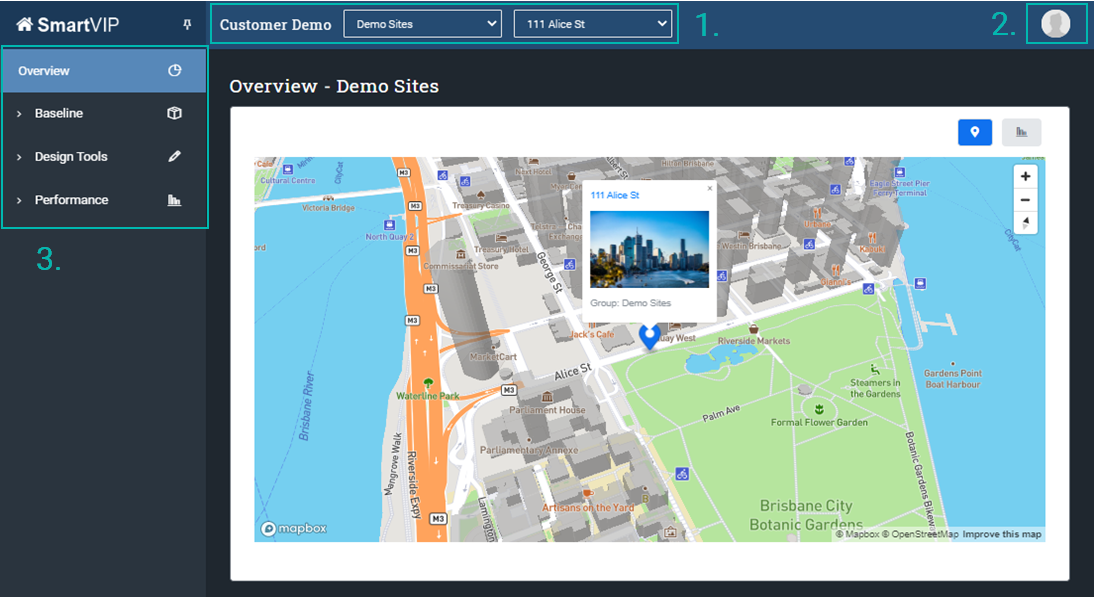
- User preferences can be modified by selecting the User Icon in the top right corner. Name, location and notification settings can be defined and saved. You can also securely log out of the platform by selecting Logout from the User Icon drop-down. Always remember to log out after your session is complete to ensure your information remains secure and private.
- The main navigation includes access to the three primary areas of the platform:
- Baseline
Review and edit the building's baseline energy model, access the asset register and manage any building documentation. - Design Tools
Plan, define and simulate a range of FIMs, compare building designs and generate business cases for potential building upgrades. - Performance
Review the performance of live projects, view and interrogate live consumption data and generate consumption reports.
- Baseline
Comments
0 comments
Article is closed for comments.